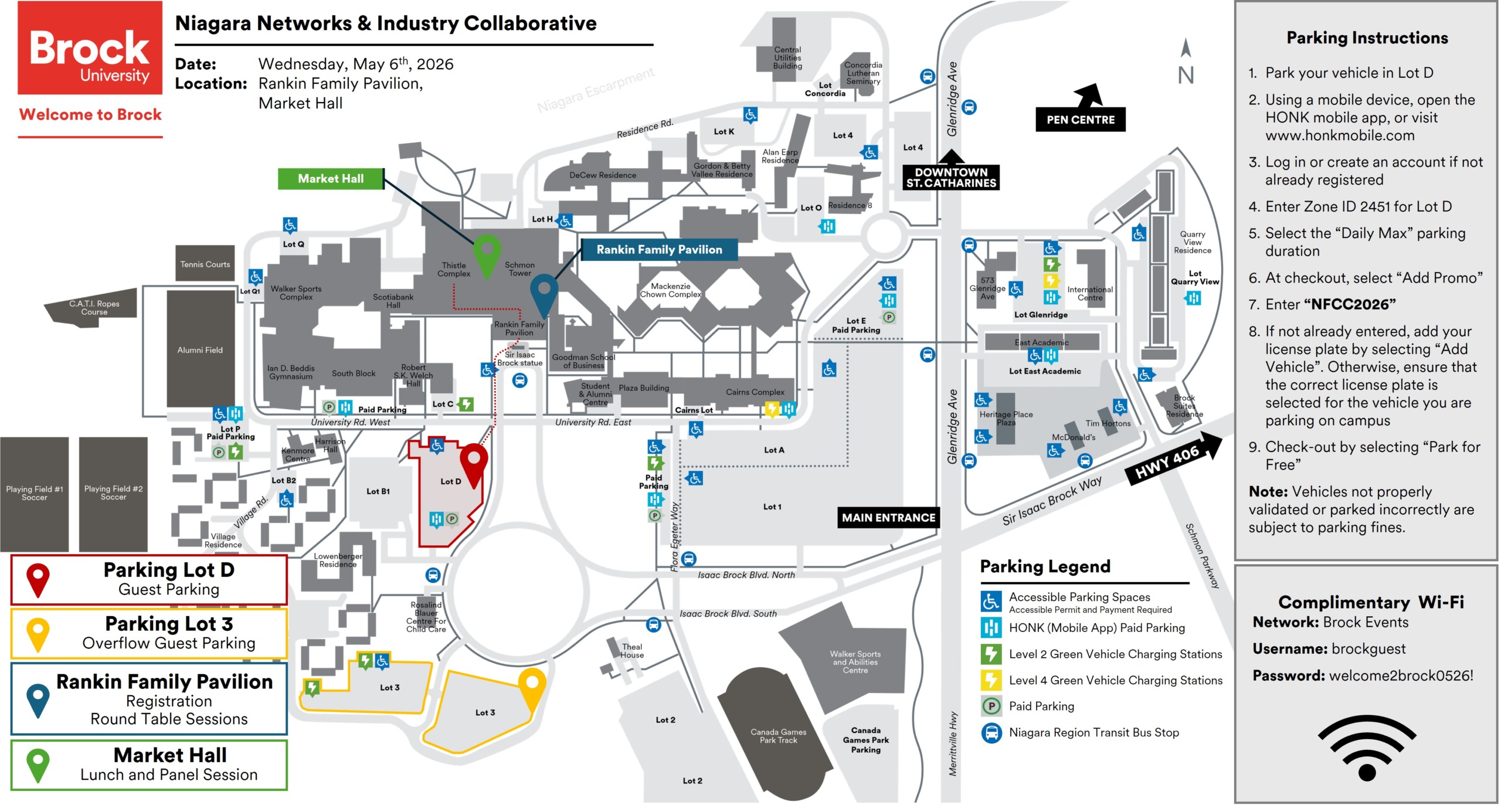
Instructions on how to use the HONK promo code are listed below, and have also been added to the campus map (below).
Two Week’s Prior to the Event – if you know the vehicle you will be driving:
1. Using a mobile device, open the HONK mobile app, or visit www.honkmobile.com
2. Log in or create an account if not already registered.
3. Go to “Search Zone ID”
4. Enter Zone ID 2451 for Lot D
5. Select “Start Time Now”, pick “Select a start time”, input “May 6th, 8:00 AM”, and select “Set”
6. Select the “Daily Max” parking duration
7. At checkout, select “Add Promo”
8. Enter “NFCC2026”
9. If not already entered, add your license plate by selecting “Add Vehicle”. Otherwise, ensure that the correct license plate is selected for the vehicle you will be parking on campus
10. Check-out by selecting “Park for Free”
11. On the day of the event, simply park your vehicle (that you had indicated on the app/website) in Lot D
Day of Event:
1. Park your vehicle in Lot D
2. Using a mobile device, open the HONK mobile app, or visit www.honkmobile.com
3. Log in or create an account if not already registered
4. Go to “Search Zone ID”
5. Enter Zone ID 2451 for Lot D
6. Select the “Daily Max” parking duration
7. At checkout, select “Add Promo”
8. Enter “NFCC2026”
9. If not already entered, add your license plate by selecting “Add Vehicle”. Otherwise, ensure that the correct license plate is selected for the vehicle you are parking on campus
10. Check-out by selecting “Park for Free”
Once the transaction has been completed, a timer will show on the mobile app/website to indicate when parking privilege expires. Successful transactions will also result in a receipt sent directly to the guest’s email (used to log into the app/website)